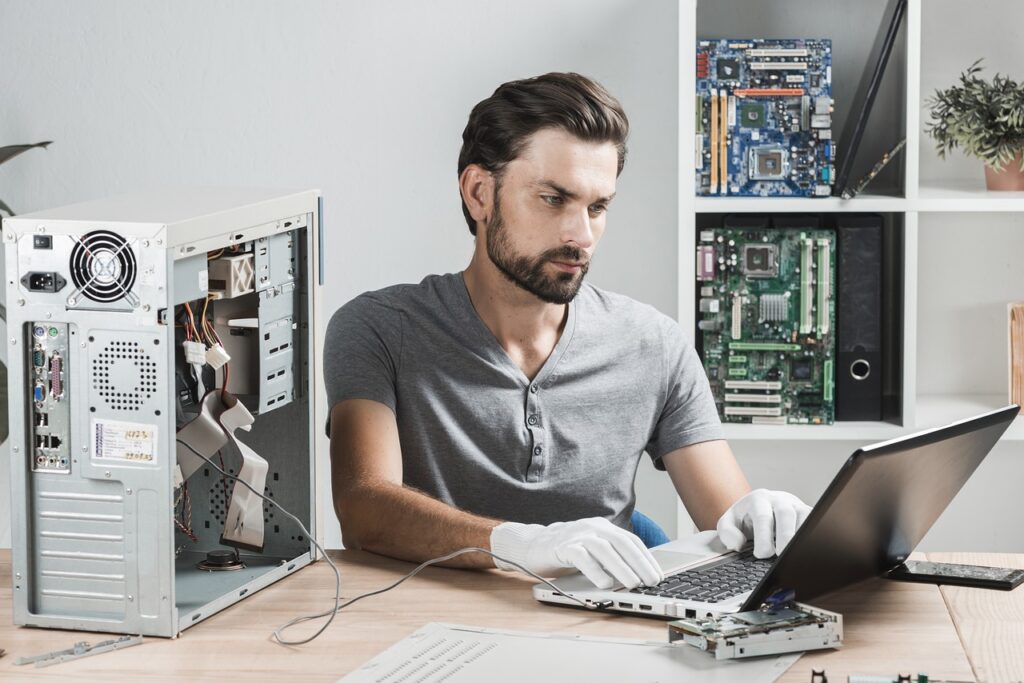
We provide all Laptops, Computers, Accessories, and Dell Inspiron Related Laptop Motherboard Repairing Services and IT Support Service Providers in Nagpur City. Nowadays Laptops Are Rapidly Replacing Desktops as The Backbone of Many Institute Organizations and Companies. And Laptop, Computer, or Server Downtime Means Loss of Work, Energy, And Revenue. And what happens when your Laptop, Computer, Server, or any related IT Asset Stops Working Well, Here we are Providing Laptop, Computer Repair, and Upgrading Services with An Upgrading Time That’s Among the Fastest in The Industry. And all types of Part Repair and Replacement Like Hard Disk Drives (HDD), Solid State Drives(SSD), Batteries, Speakers, Motherboards, Laptop LED LCD Full HD Screens, IPS Laptop Screen, And Also Upgrading Random Access Memory (RAM), OS Installation, Software Installation, Laptop Motherboard Repair, Laptop Cleaning, Broken Hinges, Or Damaged Fabrication.
We provide all Laptops, Computers, Accessories, and Dell Inspiron Related Laptop Motherboard Repairing Services and IT Support Service Providers in Nagpur City. Nowadays Laptops Are Rapidly Replacing Desktops as The Backbone of Many Institute Organizations and Companies. And Laptop, Computer, or Server Downtime Means Loss of Work, Energy, And Revenue. And what happens when your Laptop, Computer, Server, or any related IT Asset Stops Working Well, Here we are Providing Laptop, Computer Repair, and Upgrading Services with An Upgrading Time That’s Among the Fastest in The Industry. And all types of Part Repair and Replacement Like Hard Disk Drives (HDD), Solid State Drives(SSD), Batteries, Speakers, Motherboards, Laptop LED LCD Full HD Screens, IPS Laptop Screen, And Also Upgrading Random Access Memory (RAM), OS Installation, Software Installation, Laptop Motherboard Repair, Laptop Cleaning, Broken Hinges, Or Damaged Fabrication.
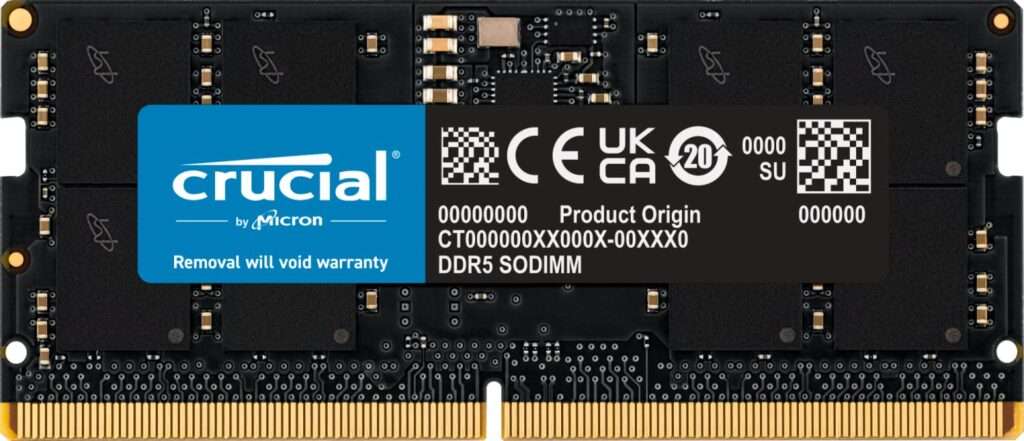
DDR5 RAM is indeed expected to be significantly faster than DDR4 RAM. The “DDR” in DDR5 stands for “Double Data Rate,” indicating that it can transfer data at twice the speed of its predecessor. However, it is important to note that the actual performance increase may vary depending on various factors.
DDR5 RAM offers higher clock speeds, increased bandwidth, and improved data transfer rates compared to DDR4 RAM. It achieves this by utilizing new technologies and design enhancements. DDR5 RAM modules have more pins and higher densities, allowing for greater memory capacity and faster data access.
The increased speed of DDR5 RAM can lead to improved overall system performance, particularly in tasks that heavily rely on memory bandwidth, such as gaming, video editing, and data-intensive applications. It enables faster data transfers between the RAM and the processor, reducing latency and improving responsiveness.
Moreover, DDR5 RAM introduces new features like Error Correcting Code (ECC) for improved data integrity and reliability. It also supports higher memory densities, allowing for larger memory configurations in high-end systems.
While DDR5 RAM offers significant performance benefits, it’s important to note that its compatibility is limited to newer systems that are designed to support it. Existing systems using DDR4 RAM will not be able to upgrade to DDR5 without a motherboard and CPU that specifically support DDR5.
Here are some of the key advantages of DDR5 RAM
Increased Speed: DDR5 RAM provides higher clock speeds and improved data transfer rates, allowing for faster and more efficient performance. The increased speed enables quicker data access and reduces latency, resulting in improved overall system responsiveness.
Higher Bandwidth: DDR5 RAM offers greater memory bandwidth compared to DDR4 RAM. This increased bandwidth enables faster data transfers between the RAM and the processor, allowing for smoother multitasking, faster application loading times, and improved performance in memory-intensive tasks such as gaming, video editing, and data analysis.
Improved Efficiency: DDR5 RAM introduces several architectural enhancements that improve power efficiency. It features a more advanced power management system that allows for better control over voltage and power consumption, leading to reduced energy usage and lower heat generation.
Higher Density: DDR5 RAM supports higher memory densities, allowing for larger memory configurations in high-end systems. This means that systems equipped with DDR5 RAM can accommodate more memory, providing a significant boost in overall system performance, especially for memory-intensive applications and workloads.
Error Correcting Code (ECC): DDR5 RAM includes built-in support for Error Correcting Code (ECC). ECC helps detect and correct errors that may occur during data transmission, enhancing data integrity and system stability. This feature is particularly beneficial in critical applications that require high reliability and accuracy, such as servers and workstations.
Future-Proofing: As DDR5 RAM becomes the new standard, investing in DDR5-compatible systems ensures future compatibility and upgradability. DDR5 technology is expected to be supported by upcoming processors and motherboards, ensuring that users can take advantage of the latest advancements in memory technology.
If you have deleted photos from your device, there are several ways to attempt to recover them:
Check your device’s trash or recycle bin: Many devices have a trash or recycle bin where deleted files are stored temporarily. Check this folder to see if your photos are still there.
Use data recovery software: There are several data recovery software programs available online that can help you recover deleted files. Some of the popular options are Recuva, EaseUS Data Recovery Wizard, and Disk Drill.
Check your cloud storage: If you have uploaded your photos to a cloud storage service like Google Drive, iCloud, or Dropbox, you may be able to recover them from there.
Contact a professional data recovery service: If the above methods don’t work, you may need to contact a professional data recovery service. These services can be expensive, but they may be able to recover your photos.
It’s important to note that the chances of successfully recovering deleted photos depend on several factors, such as how long ago they were deleted, how frequently you used your device after deleting them, and whether they were overwritten by new data. Therefore, it’s always a good idea to back up your photos regularly to prevent data loss.
Taking care of your laptop is important to ensure its longevity and optimal performance. Here are some tips on how to take care of your laptop:
Keep it clean: Regularly clean the exterior of your laptop using a soft, lint-free cloth. You can lightly dampen the cloth with water or use specialized electronic cleaning solutions. Avoid spraying liquids directly on the laptop.
Protect it from physical damage: Use a laptop bag or case to protect your laptop while traveling or when not in use. Avoid placing heavy objects on top of your laptop or dropping it, as this can cause internal damage.
Use a stable surface: Always place your laptop on a stable and flat surface. Using it on an unstable or uneven surface can put strain on the internal components and affect its performance.
Avoid extreme temperatures: Keep your laptop in an environment with moderate temperatures. Avoid exposing it to extreme heat or cold, as this can cause damage to the internal components.
Ventilation: Ensure proper airflow around your laptop. Avoid blocking the air vents, as this can lead to overheating. You can use a laptop cooling pad to improve airflow and reduce the temperature.
Power management: Properly manage your laptop’s battery. Avoid letting the battery drain completely and then leaving it unused for long periods. If you’re not using your laptop for an extended period, it’s best to charge the battery to around 50% and then store it.
Software updates and security: Keep your laptop’s operating system and software up to date to benefit from bug fixes, security patches, and performance improvements. Install reliable antivirus software and perform regular scans to keep your laptop protected from malware.
Handle cables with care: Be gentle when plugging and unplugging cables from your laptop. Avoid yanking on the cables, as this can damage the ports or connectors.
Back up your data: Regularly back up your important files and data to an external hard drive or cloud storage. In the event of a hardware failure or accidental damage, you can recover your data without losing it.
Avoid food and liquids near your laptop: Eating or drinking near your laptop increases the risk of spills, which can cause significant damage. Keep liquids and food away from your workspace to prevent accidents.
Remember to consult your laptop’s user manual for specific care instructions provided by the manufacturer, as different laptops may have unique requirements.
AI stands for Artificial Intelligence, which refers to the development of computer systems that can perform tasks that normally require human intelligence, such as visual perception, speech recognition, decision-making, and language translation. AI systems use algorithms and statistical models to analyze data, learn from it, and make predictions or decisions based on that learning.
AI can be classified into three categories:
Reactive AI: Reactive AI systems can only react to the current situation, and they don’t have the ability to form memories or use past experiences to inform their decisions.
Limited Memory AI: Limited Memory AI systems can learn from past experiences and use that learning to inform their decisions. They can also use current inputs to make predictions about the future.
Self-aware AI: Self-aware AI systems have a sense of self and can use that awareness to learn and improve over time. They can reason, plan, and adapt to new situations, and they may even have emotions or consciousness.
Some examples of AI applications include:
Image and speech recognition
Natural language processing
Robotics and automation
Fraud detection and prevention
Recommendation systems in e-commerce and entertainment
Medical diagnosis and treatment planning
AI is a rapidly evolving field with enormous potential for improving and transforming various industries and sectors. However, there are also concerns around the ethical and social implications of AI, such as job displacement, privacy, and bias.
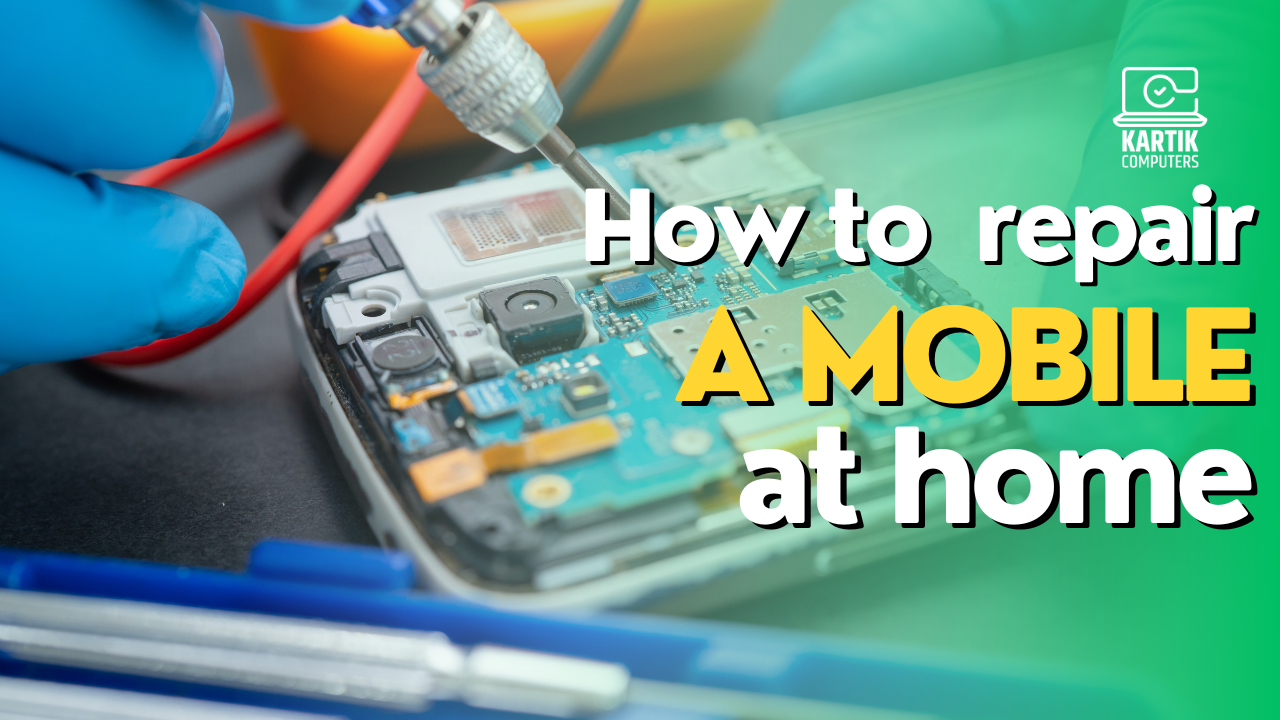
Repairing a mobile phone at home can be challenging and requires technical skills and knowledge. It’s always recommended to take your mobile phone to a professional technician or a certified service center for repair. However, if you’re comfortable with repairing your mobile phone yourself, here are some general steps that you can follow:
Diagnose the problem: Identify what’s causing the issue with your mobile phone. It could be a hardware problem such as a broken screen or a faulty battery, or a software issue such as a virus or a corrupt operating system.
Back up your data: Before attempting any repairs, make sure to back up all your important data to an external storage device or a cloud-based storage service to prevent data loss.
Gather the necessary tools and equipment: You’ll need a set of screwdrivers, a prying tool, a heat gun, and possibly other tools depending on the repair you’re attempting.
Disassemble the phone: Carefully remove the screws and components to gain access to the damaged part. Refer to the manufacturer’s manual or online guides for disassembly instructions specific to your phone model.
Replace or repair the damaged part: Depending on the problem, you may need to replace a broken screen, a faulty battery, or a damaged charging port. Make sure to use compatible replacement parts and follow manufacturer’s instructions.
Reassemble the phone: Once the damaged part has been replaced or repaired, reassemble the phone in the reverse order of disassembly.
Test the phone: Turn on the phone and make sure that the repaired part is functioning properly. If everything is working as expected, you can install the operating system and restore your data.
Remember that mobile phone repair can be a complex process, and it’s always best to seek professional help if you’re unsure about any step of the repair process. Additionally, keep in mind that some mobile phone manufacturers have policies that void the warranty if the phone is repaired by someone other than an authorized technician, so make sure to check the warranty terms before attempting any repairs.
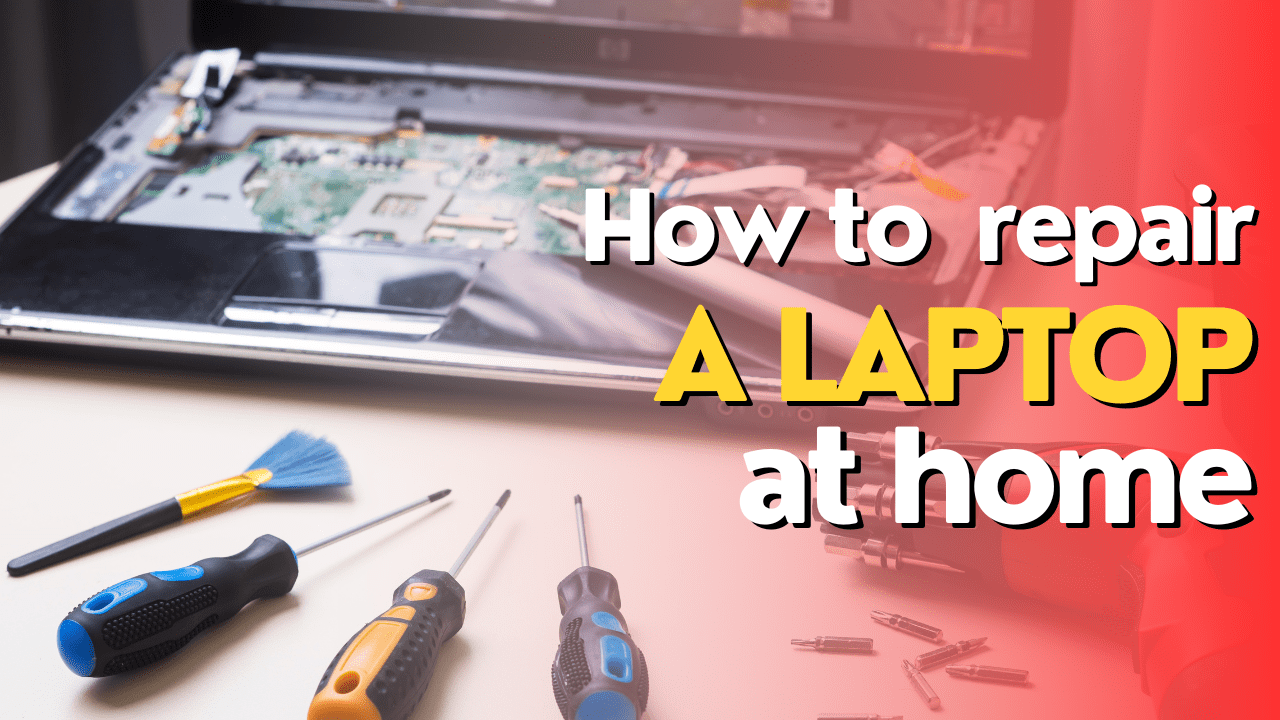
Repairing a laptop can be a complex process that requires technical knowledge and skills. If you’re not experienced with laptop repair, it’s recommended to seek the help of a professional technician or a certified service center.
However, if you’re comfortable with repairing your laptop yourself, here are some general steps that you can follow:
Diagnose the problem: Identify what’s causing the issue with your laptop. It could be a hardware problem such as a broken screen or a faulty hard drive, or a software issue such as a virus or a corrupt operating system.
Back up your data: Before attempting any repairs, make sure to back up all your important data to an external hard drive or a cloud-based storage service to prevent data loss.
Gather the necessary tools and equipment: You’ll need a set of screwdrivers, a can of compressed air, and possibly other tools depending on the repair you’re attempting.
Disassemble the laptop: Carefully remove the screws and components to gain access to the damaged part. Refer to the manufacturer’s manual or online guides for disassembly instructions specific to your laptop model.
Replace or repair the damaged part: Depending on the problem, you may need to replace a broken screen, a faulty hard drive, or a damaged keyboard. Make sure to use compatible replacement parts and follow manufacturer’s instructions.
Reassemble the laptop: Once the damaged part has been replaced or repaired, reassemble the laptop in the reverse order of disassembly.
Test the laptop: Turn on the laptop and make sure that the repaired part is functioning properly. If everything is working as expected, you can install the operating system and restore your data.
Remember that laptop repair can be a challenging process, and it’s always best to seek professional help if you’re unsure about any step of the repair process.
‘Kartik Computers’ popular laptop repair service provider in Nagpur. We offer various services, including hardware repair, software installation, virus removal, and data recovery. We have a team of skilled technicians who can diagnose and fix laptop problems quickly.
Here is a general guide on how to repair a computer:
Identify the problem: The first step in repairing a computer is to identify the problem. Is it a software or hardware issue? Is it related to the operating system or a specific program? Once you have identified the problem, you can move on to the next step.
Backup important data: Before making any changes to the computer, it’s important to backup all important data. This can be done by copying files to an external hard drive, using a cloud-based storage service, or using a backup software program.
Try basic troubleshooting: Sometimes, the problem with the computer can be fixed by simple troubleshooting steps. For example, restarting the computer, updating drivers, or checking for software updates. Make sure to try these basic troubleshooting steps before moving on to more complex solutions.
Use diagnostic tools: If basic troubleshooting doesn’t solve the problem, you can use diagnostic tools to identify the root cause of the problem. There are several diagnostic tools available online that can help diagnose hardware and software issues.
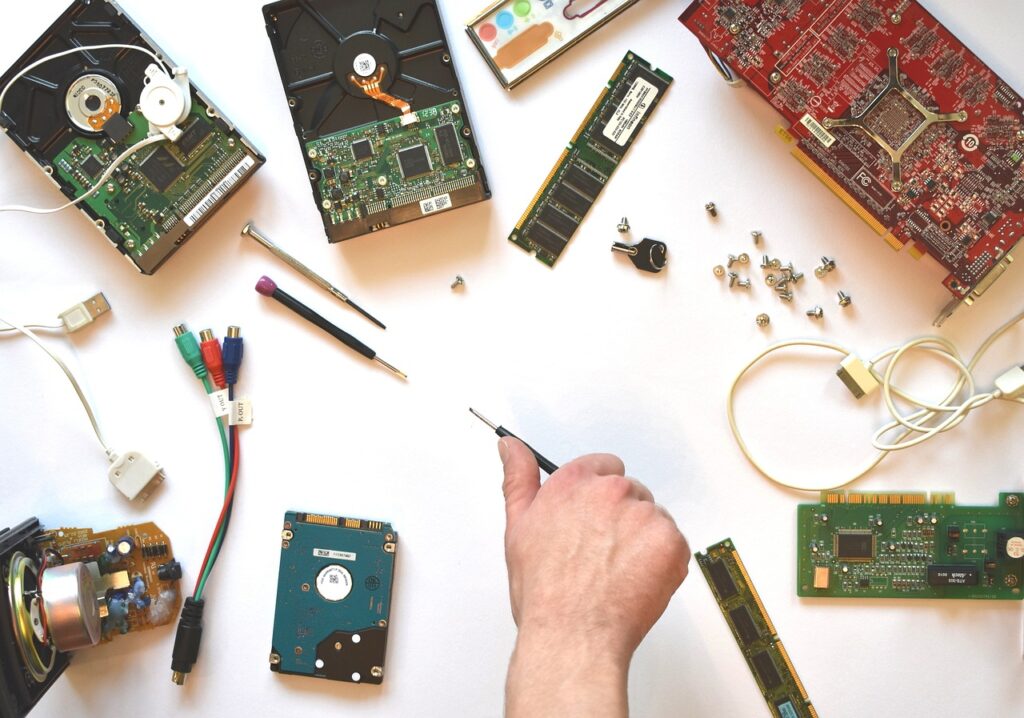
Replace hardware components: If the problem is related to hardware components, you may need to replace them. This can include replacing a faulty hard drive, RAM, or power supply.
Reinstall the operating system: If the problem is related to the operating system, you may need to reinstall it. This can be done by using the operating system installation disk or USB drive.
Get professional help: If you are not comfortable repairing the computer yourself, it’s best to get professional help. You can take the computer to a local repair shop or contact the manufacturer’s support team for assistance.
Remember to always take precautions when repairing a computer. Make sure to turn off the computer and unplug it from the power source before opening the case or making any changes to the hardware components. Additionally, make sure to handle all hardware components with care to avoid damaging them.
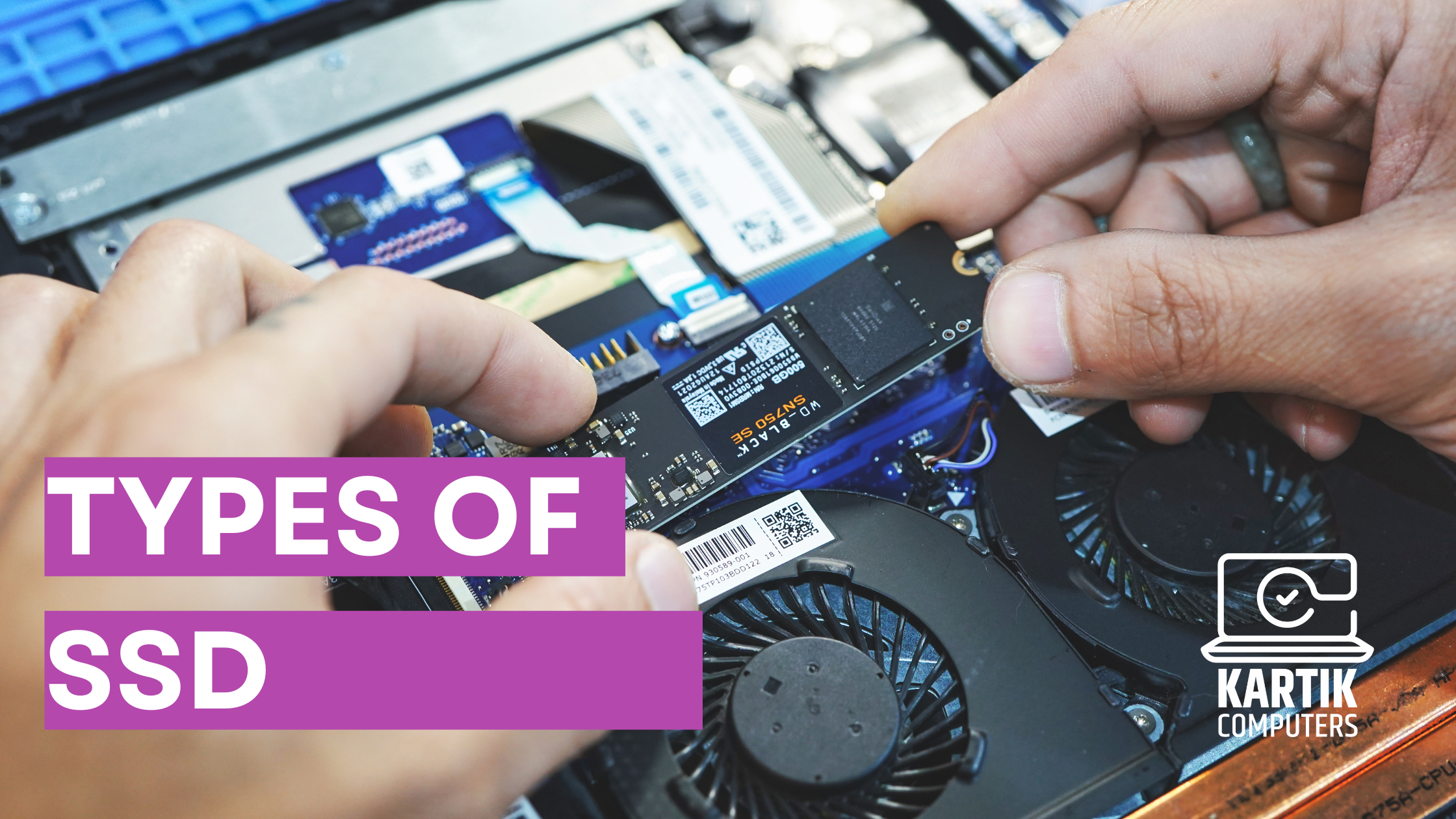
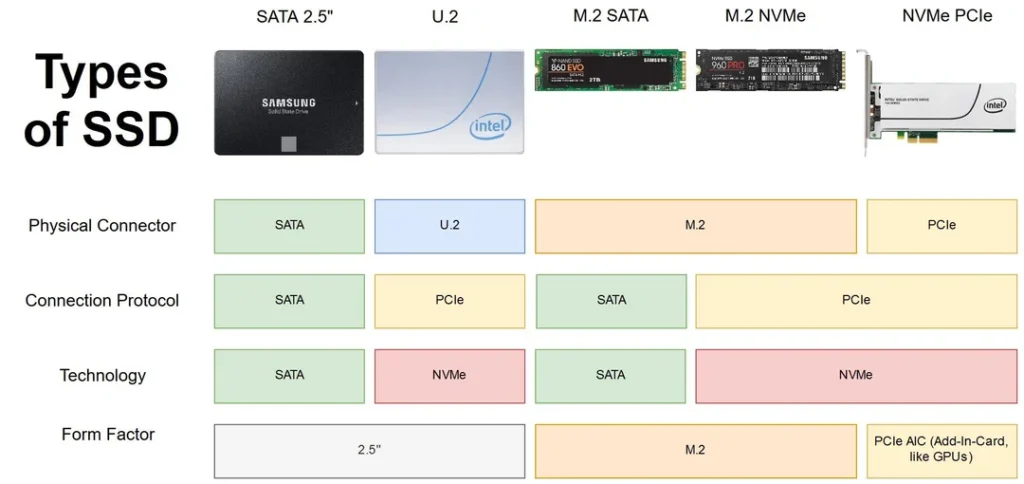
There are several types of SSDs (Solid State Drives) available in the market, including:
SATA SSD: This type of SSD uses a SATA interface to connect to a computer’s motherboard. It is one of the most commonly used SSDs and provides faster data transfer speeds compared to traditional hard drives.
PCIe NVMe SSD: This SSD connects to a computer’s PCIe slot and uses NVMe (Non-Volatile Memory Express) protocol for faster data transfer rates. NVMe SSDs are typically more expensive but provide significantly faster read and write speeds compared to SATA SSDs.
M.2 SSD: This type of SSD is a small form factor drive that can be connected directly to the motherboard using an M.2 slot. It can use either the SATA or PCIe interface.
U.2 SSD: Also known as SFF-8639, this SSD uses a U.2 interface and can be used for enterprise-level storage applications.
SAS SSD: This SSD uses the Serial Attached SCSI interface and is typically used for enterprise-level storage applications.
Hybrid SSD: This type of SSD combines both solid-state storage and traditional hard disk drive storage into a single unit. It uses a small amount of high-speed flash memory to store frequently accessed data, while less frequently accessed data is stored on the hard drive portion of the unit.
Overall, the type of SSD that is most suitable for you will depend on your specific needs and the compatibility of your computer’s motherboard.